Troubleshooting guide
OBS Separate Audio Tracks Missing: When the Meter Moves but the Recording Has No Source Audio
Category: Video Recording
You are recording game and mic on separate tracks, and the meter moves for a source, but the recorded file has no audio from that source—so you are stuck at the audio source is not captured step before completing a controlled diagnosis.
Check Track Assignments First
Open the source’s properties (gear icon) and go to Audio. Under Tracks, confirm the source’s track is checked—not just the master track. If the source is only on a track you are not recording, it will be silent in the file. Next, open Settings > Output > Recording and verify the Audio Track checkboxes match the tracks you assigned. A mismatch here is the most common cause of obs separate audio tracks missing from the final file.
Confirm the Mixer Routing
In the Audio Mixer, right-click the source and ensure it is not routed to a track that is disabled for recording. Also check that no filter (such as a noise gate or compressor) is muting the signal after the meter. If the meter moves but the file is silent, the source is being captured but not written to the selected track.
Verification Test
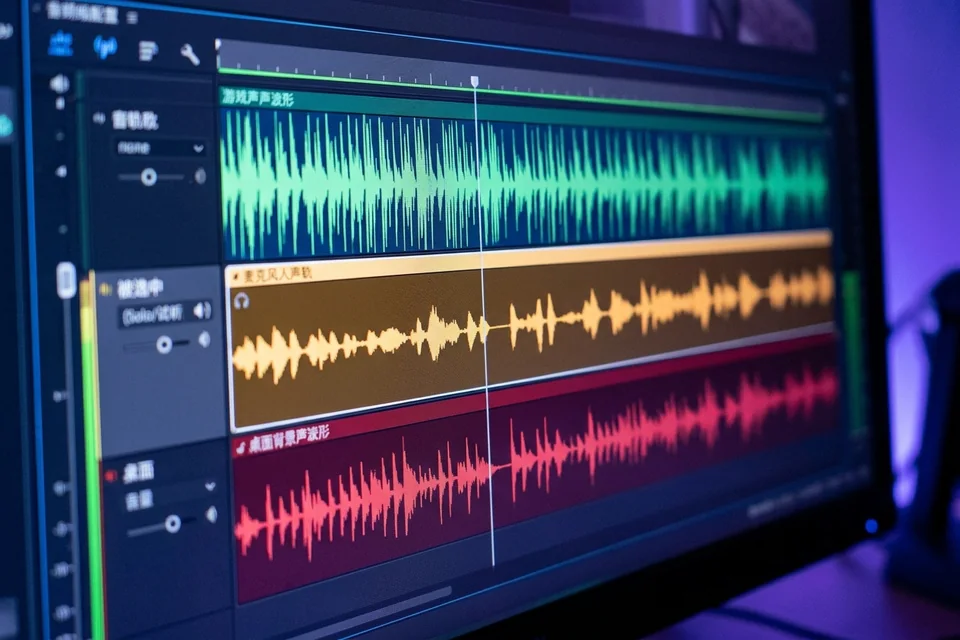
Record a 10-second clip while speaking into the mic and playing game audio. Stop recording, then open the file in a player that shows track selection (or use a media info tool). Confirm each expected track contains audio. If a track is empty, re-check the track checkbox for that source and repeat.
Rollback Note
If you changed track assignments and the recording is worse, revert to the previous track layout before saving. Keep a note of the original settings so you can restore them.
If the track still does not appear after these checks,
Ask for help with your OBS log and a short sample recording.