Troubleshooting guide
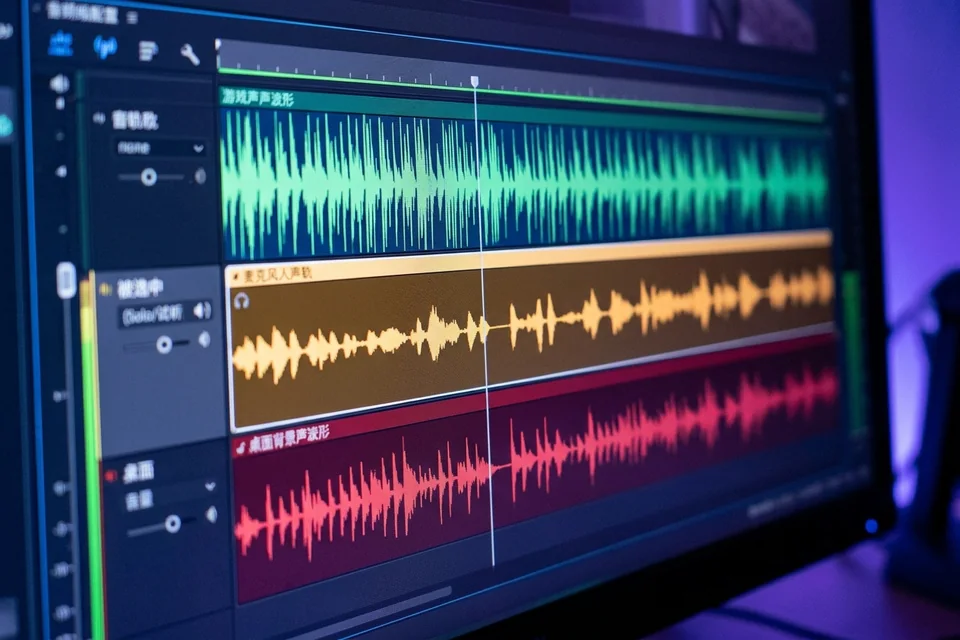
OBS Separate Audio Tracks: When the Meter Moves but the Recording Has No Source Audio
Category: Video Recording
You are recording game and mic on separate tracks in OBS Studio, but at the audio source is not captured step the meter moves while the recorded file has no source audio.
Check Track Assignments First
Open the Advanced Audio Properties (click the gear icon in the Audio Mixer). For each source, verify which track numbers are checked under Tracks. A source with only Track 1 checked will not appear on Track 2, even if the meter moves. Confirm your mic is assigned to Track 2 and game audio to Track 1, or whatever layout you intend. If a source has no tracks checked, it will be silent in the recording. Result interpretation: if the source shows a moving meter but no track is checked, that is your cause.
Verify Output Track Selection
Go to Settings > Output > Recording. Under the Recording tab, check the Track selection. If only Track 1 is selected for output, other tracks are discarded. Select all tracks you need (e.g., 1 and 2). Also confirm the recording format supports multiple tracks (MKV or MP4 with multiple audio tracks). Result interpretation: if only one track is selected here, the file will contain only that track.
Run a Verification Test
Record 10 seconds with both sources active. Stop and open the file in a player that shows audio tracks (VLC: Audio > Audio Track). You should see separate tracks. If the source audio is still missing, re-check Advanced Audio Properties for that source and ensure its track is checked and that track is enabled in Output settings.
Rollback and Recovery
If you changed track assignments and the recording is worse, revert to your previous track layout in Advanced Audio Properties and Output settings. Keep a note of working settings before experimenting.
For a controlled diagnosis of your obs separate audio tracks setup,