Troubleshooting guide
OBS Recording Audio: Meter Moves but No Source Audio in the File
Category: Video Recording
You are recording a game and mic on separate tracks in OBS Studio, and although the audio meter moves, the recorded file has no source audio. This points to a track routing or source assignment issue, not a capture failure. Let’s diagnose it in order.
Check Track Assignments in Advanced Audio Properties
Open Edit > Advanced Audio Properties. For each source (game and mic), verify which tracks are checked. If a source is checked on Track 2 but your recording only saves Track 1, its audio will be missing. Ensure each source is assigned to at least one track that is actually recorded. Also confirm that the track you expect is enabled in Settings > Output > Recording > Audio Track. If only Track 1 is selected there, any source not on Track 1 will be silent in the file. Result interpretation: if a source has no checkmarks, it will not be recorded at all.
Verify Source-to-Track Mapping
In the same Advanced Audio Properties window, check that the game and mic are not accidentally assigned to the same track if you need separation. More importantly, confirm that the track number you intend to record matches the checkboxes. A common mistake is enabling Track 2 in output settings but leaving sources on Track 1 only. If the meter moves but the file is silent, this mismatch is the likely cause.
Run a Verification Test
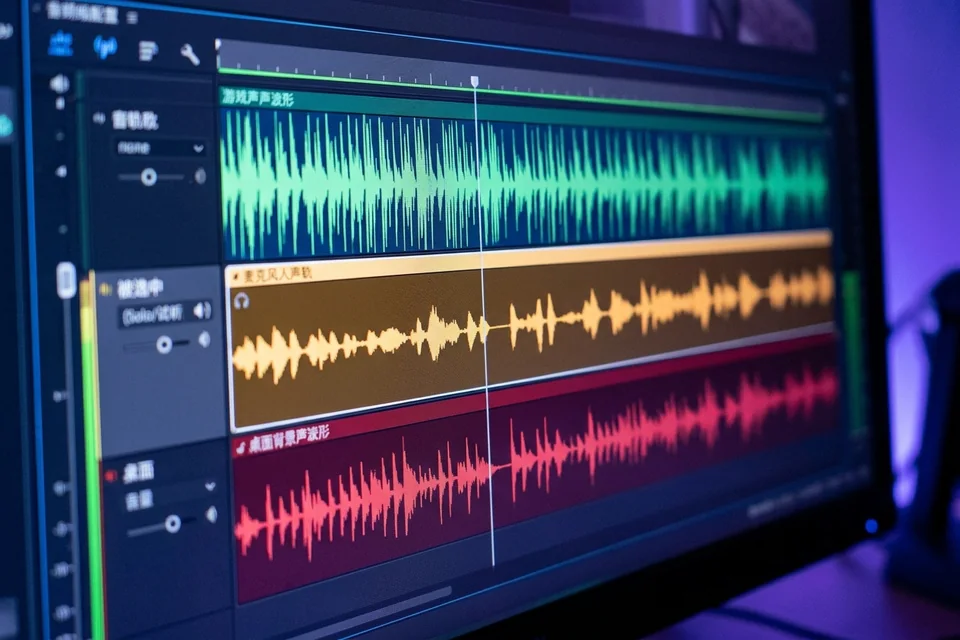
Create a short test recording: speak into the mic and play game audio for ten seconds. Stop recording and open the file in a media player or editor that shows tracks. If the source audio appears on the expected track, the issue is resolved. If not, revisit the track assignments.
Rollback and Recovery
If you changed multiple settings, revert to your previous configuration by reloading a saved profile or scene collection. This prevents compounding errors. After restoring, apply one change at a time and retest.
For a controlled diagnosis of your obs recording audio setup,