Troubleshooting guide
OBS Record Screen and Audio: Meter Moves but Recorded File Has No Source Audio
Category: Video Recording
You are recording a game and mic on separate tracks, and the meter moves but the recorded file has no source audio. Let’s diagnose this in a controlled way.
Check track routing for the source
Open OBS and go to the audio mixer. Click the gear icon next to the source that shows movement, then choose Advanced Audio Properties. In the Tracks column, confirm the source is checked on at least one track that is actually being recorded. If it is unchecked everywhere, the meter will still move but nothing will be written. Check it on Track 1 or the track you intend to use, then click Close.
Confirm the recording track selection
Go to Settings > Output. In the Recording section, look at the audio track checkboxes. Make sure the track you assigned the source to is enabled for recording. If only Track 1 is enabled and your source is on Track 2, the file will be silent for that source. Enable the correct track and apply.
Verify with a short test recording
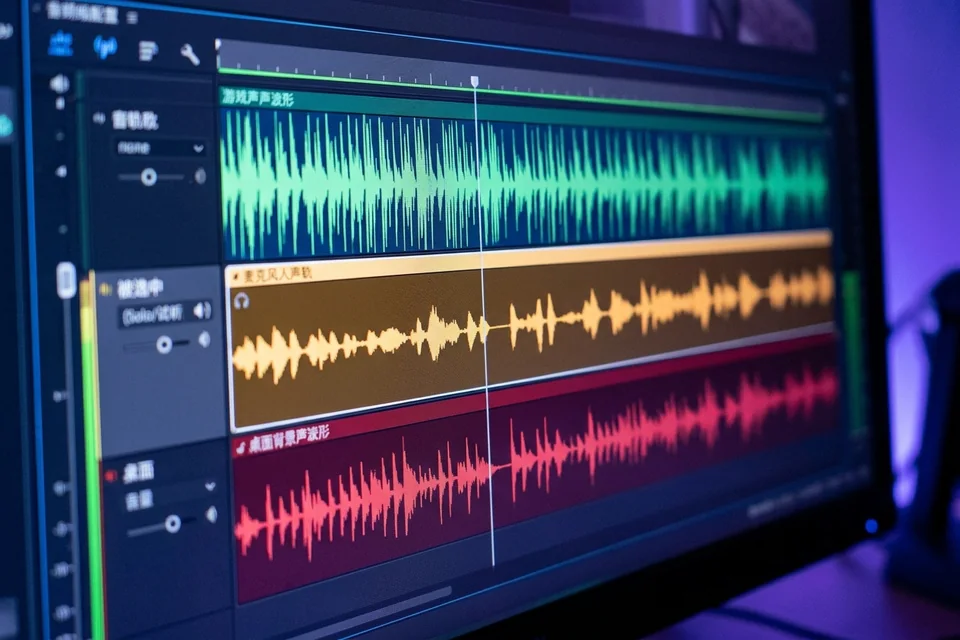
Record 10 seconds while speaking and playing game audio. Stop and open the file in a player that shows track information, or import it into an editor. If the source audio appears on the expected track, the fix worked. If the meter still moves but the file is silent, recheck the Advanced Audio Properties and output track settings together.
Rollback and recovery
If you changed multiple settings, revert to your previous output configuration and reapply one change at a time. Keep a backup of your OBS profile before further edits. For a structured diagnosis of obs record screen and audio,