Troubleshooting guide
OBS Only One Audio Track: Why Your Recording Has Audio on Track 1 Only
Category: Video Recording
You set up OBS to record game and mic on separate tracks, but the finished file plays with audio only on track 1, and you are stuck before completing a controlled diagnosis.
Check the Output Settings First
Open Settings, then Output, and switch the output mode to Advanced. In the Recording tab, look at the Audio Track checkboxes. If only track 1 is checked, OBS writes just that one track no matter how your sources are assigned. Check the tracks you need, then click Apply. This is the most common cause of an obs only one audio track result.
Confirm Each Source’s Track Assignment
In the Audio Mixer, click the gear icon next to each source and open Advanced Audio Properties. Each source has a row of track checkboxes. A source assigned only to track 1 appears in track 1 only. Verify the game and mic are each assigned to their intended tracks, and that those same tracks are enabled in Output settings.
Run a Verification Test
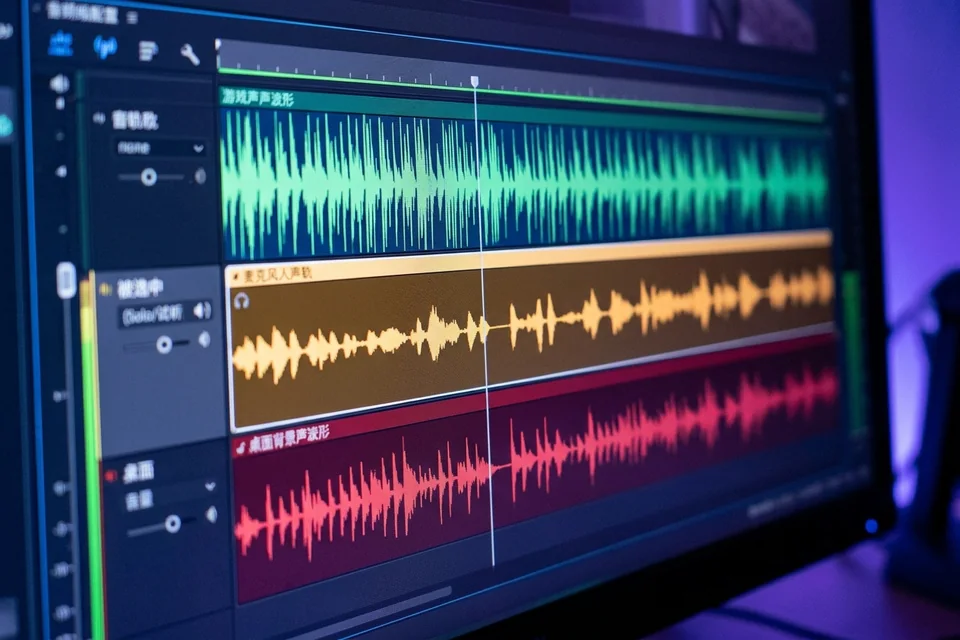
Record 20 seconds with both game audio and mic active. Open the file in a player that shows track selection, such as VLC under Audio, Audio Track. If the menu lists multiple tracks and each plays distinct audio, the fix worked. If only one track exists, return to Output settings and recheck the enabled boxes.
Rollback Note
If a test recording sounds wrong after your changes, restore your previous track assignments in Advanced Audio Properties and re-enable only track 1 in Output settings. This returns you to the known state before diagnosis.
If the track list still shows one entry after these checks,
Ask for help with your Output settings and a screenshot of Advanced Audio Properties.