Troubleshooting guide
OBS Desktop Audio Not Recording: When the Meter Moves but the File Is Silent
Category: Video Recording
You are recording a game and mic on separate tracks, and the desktop audio meter moves, but the finished file has no source audio. This is a track-routing problem, not a capture problem.
Confirm the source is actually assigned to a track
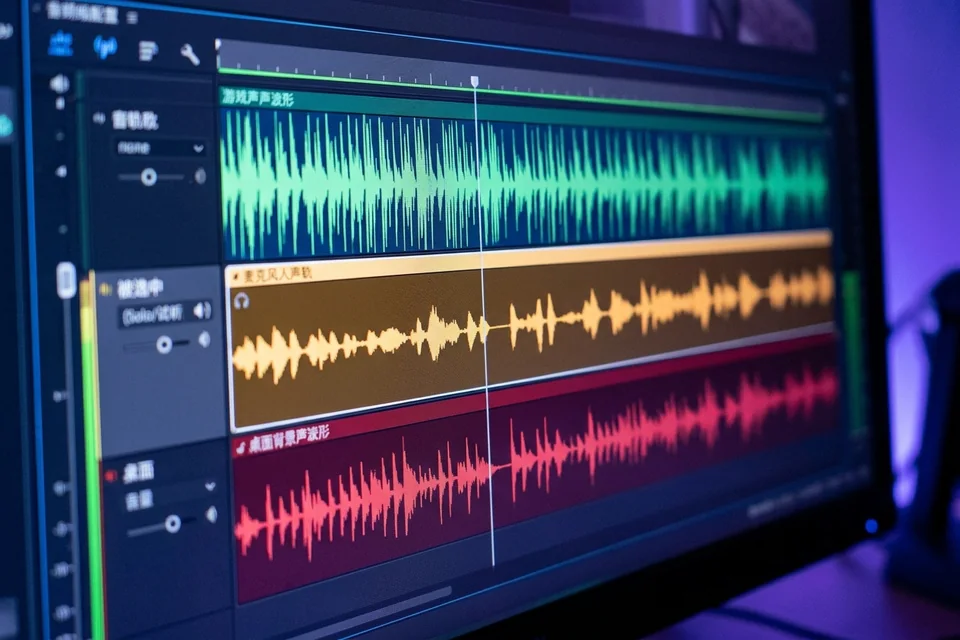
Open the Audio Mixer, click the gear next to Desktop Audio, and choose Advanced Audio Properties. In the Tracks row for that source, note which boxes are checked. If only Track 1 is checked but your recording output uses Track 2, the meter will still move while the file stays silent. Check at least one track that your recording settings actually write to.
Check the recording output track selection
Go to Settings, Output, and switch the output mode to Advanced. Under the Recording tab, inspect the Track checkboxes. The tracks enabled here must overlap with the tracks assigned to Desktop Audio. A mismatch is the usual cause of obs desktop audio not recording even when levels look healthy.
Verify with a short controlled test
Record ten seconds with desktop audio playing and your mic muted. Stop, open the file in a player that shows audio channels, and confirm the desktop track contains sound. If it does, the routing is fixed. If it does not, recheck the track boxes before changing anything else.
Rollback note
Before editing Advanced Audio Properties, screenshot your current track assignments. If the test fails, restore those exact checkboxes so you return to a known state rather than stacking changes.
If the mismatch persists after these checks,
Ask for help with your track assignments and output settings.