Troubleshooting guide
OBS Desktop Audio Not Recording: Fixing a Silent Track in Multi-Track Recordings
Category: Video Recording
You set up OBS to record game and mic on separate tracks, but after recording, the desktop audio track is silent while the mic track works. This is a common multi-track issue, and you can diagnose it methodically.
Check the Source and Track Assignment
Open OBS and go to the Audio Mixer. Confirm the desktop audio source is not muted and its fader is up. Click the gear icon next to the source, choose Advanced Audio Properties, and verify the desktop audio source has a checkmark in the track you expect (e.g., Track 2). If it is only on Track 1, that explains the silence. Also check that the correct device is selected under Settings > Audio > Desktop Audio.
Interpret the Meters
While recording, watch the desktop audio meter. If it moves but the recorded track is silent, the issue is track routing or encoding. If the meter does not move, the source is not capturing system sound—check Windows sound settings and the selected output device.
Run a Verification Test
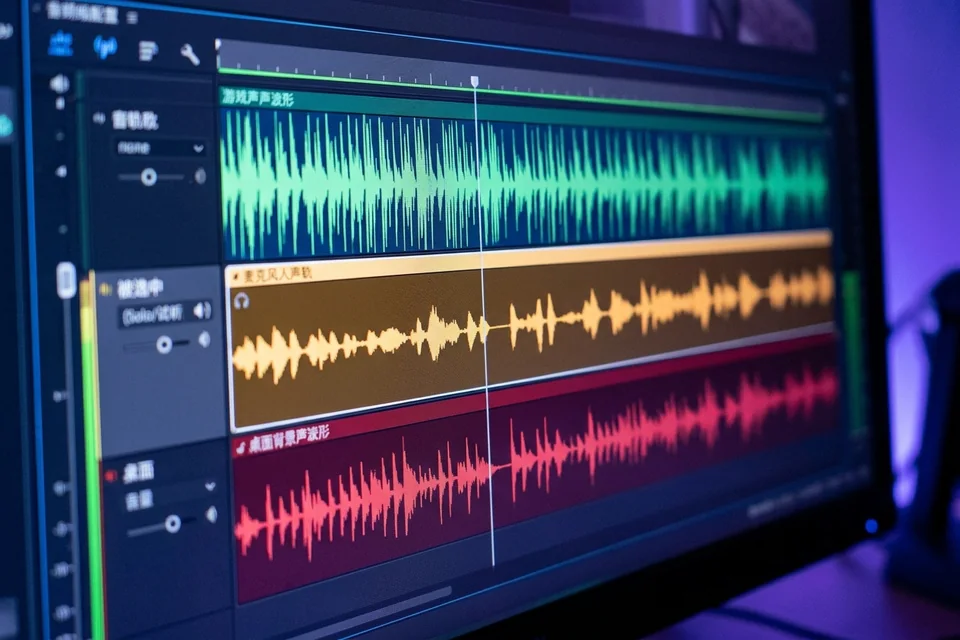
Create a short test recording: play a known sound (music or game audio) and speak into the mic. Stop recording, then open the file in a media player that shows audio tracks (or use OBS’s remux). Solo each track. The desktop track should contain only game audio; the mic track only your voice. If the desktop track is still silent, revisit Advanced Audio Properties and confirm the track number matches your recording settings under Output > Recording.
Rollback and Recovery
Before changing settings, note your current track assignments. If a fix makes things worse, revert to the previous configuration. For persistent cases where the meter moves but the file is silent, the problem may be in the encoder or container—try a different format like MKV, then remux to MP4.
If you are still stuck with obs desktop audio not recording after these checks,
Ask for help with your OBS logs and a sample file.