Troubleshooting guide
OBS Audio Echo: Why the Meter Moves but the Recording Has No Source Audio
Category: Video Recording
You are recording game and mic on separate tracks, and at the audio source is not captured step the meter moves but the recorded file has no source audio. That mismatch usually means the source is being monitored to your speakers while its track output is misrouted or muted, which can also produce an obs audio echo in your headphones.
Check Monitoring and Track Routing
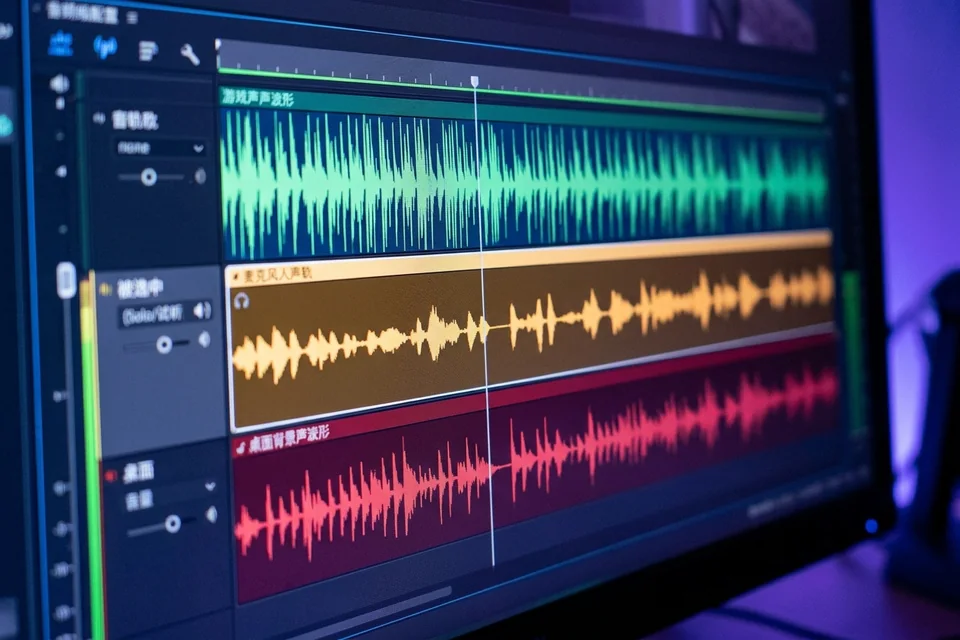
First, open the Advanced Audio Properties window for your sources. Confirm the game and mic each have a checkmark under the track you intend to record, and that no source is set to Monitor Only. If a source is set to Monitor and Output, you may hear it twice, but that does not explain a silent file. Next, verify the track numbers in Settings > Output > Recording. The audio track bitrate and track selection must include the tracks you checked. If the recording format is not compatible with multiple tracks, OBS may write only one track. Set the format to MKV or MP4 and recheck the track list.
Run a Verification Test
Record ten seconds while speaking and playing game audio. Stop, then open the file in a player that shows track selection, such as VLC. Switch between tracks. If one track is silent, note which source is missing. If both are silent but meters moved, your monitoring device is likely selected as the recording device instead of the source. Change the monitoring device in Settings > Audio to your default output and retest.
Rollback and Recovery
Before changing more settings, export your current profile and scene collection. If a test makes things worse, import the backup to restore the previous state. Keep one working test recording as a reference.
If the meter still moves while the file stays silent,
Ask for help with your OBS log and a short test clip.