Troubleshooting guide
Audio Plugin for OBS: When the Meter Moves but the Recording Has No Source Audio
Category: Video Recording
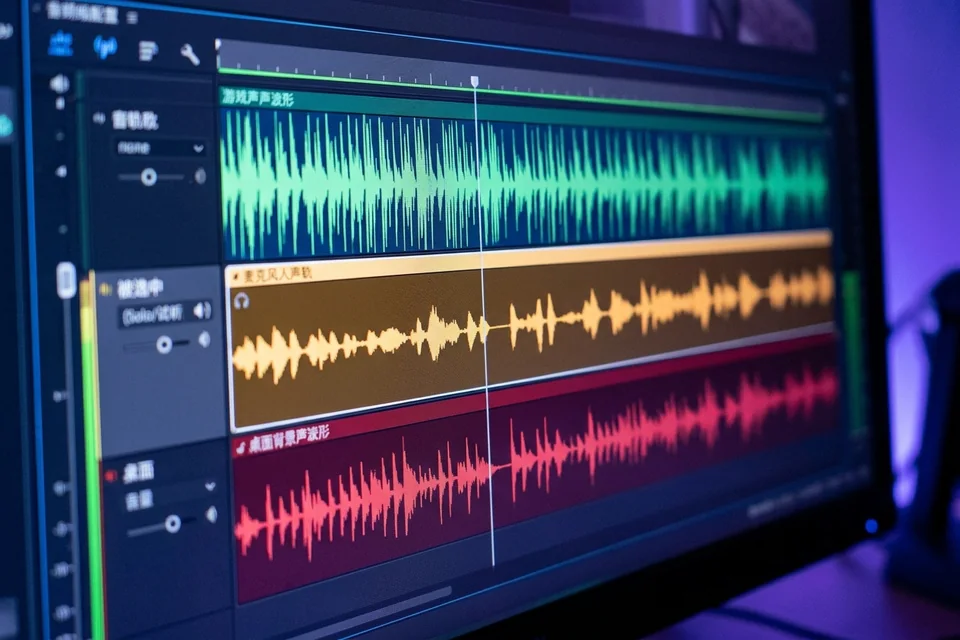
You are recording game and mic on separate tracks, and at the audio source is not captured step the meter moves but the recorded file has no source audio.
Check the plugin filter chain first
Open the source’s filters and look for any audio plugin for obs you added (VST, noise gate, compressor). If the meter still moves but the recorded file is silent, the plugin may be passing monitoring audio while muting the track output. Bypass each filter one at a time and watch the meter. If the meter drops to zero when a plugin is bypassed, that plugin is the cause. Remove it and re-add it after confirming the source records cleanly.
Confirm track routing
In Advanced Audio Properties, verify the source’s track checkboxes. The meter can move on the master while the source is assigned only to a track you are not recording. Check that the source is ticked on at least one track that matches your Output recording track selection. If the source is ticked only on a track you disabled, the file will be silent even though the meter moves.
Verification test
Record ten seconds with the plugin bypassed and the correct track ticked. Stop, open the file in a player, and confirm the source audio is present. If it is, re-enable the plugin and record again. If the audio disappears, the plugin is incompatible with your track setup; keep it bypassed or replace it.
Rollback and recovery
Before changing more settings, export your scene collection so you can restore it. If a plugin change breaks routing, remove the plugin, restart OBS, and re-import the scene collection to return to a known working state.
If the meter still moves but no source audio reaches the file after these checks,
Ask for help with your filter list and track assignments.