Troubleshooting guide
OBS Meter Moves but Recording Has No Source Audio: Fixing the Track Routing
Category: Video Recording
You’re recording gameplay and mic on separate tracks, and the meter moves, but the recorded file has no source audio, leaving you stuck before you can diagnose the problem.
Check track assignments in Advanced Audio Properties
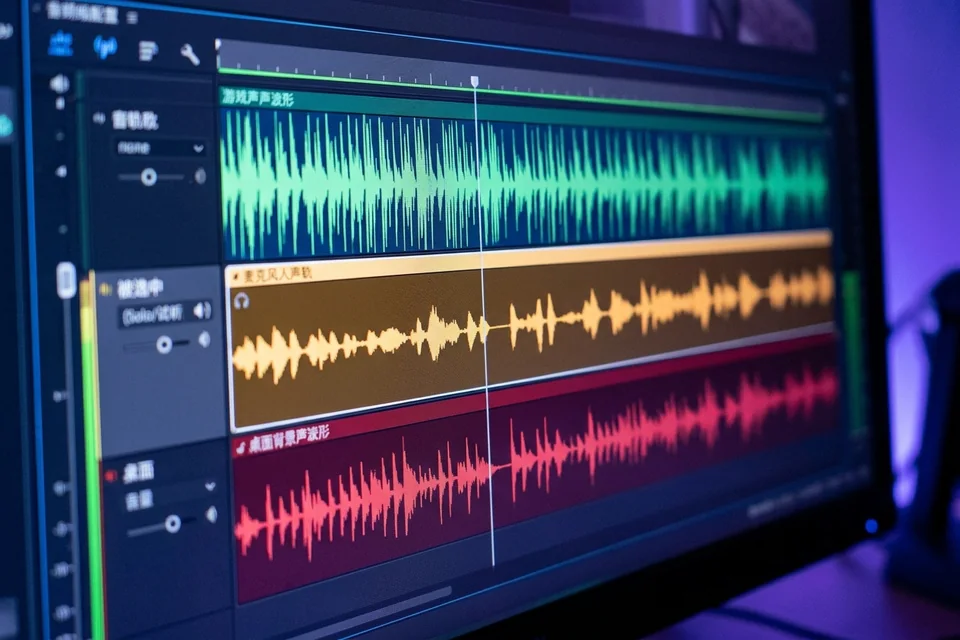
Open the mixer, click the gear icon, and select Advanced Audio Properties. For each source that should be recorded, confirm the correct track boxes are checked under Tracks. If your game is on Track 2 and mic on Track 3, those boxes must be ticked. A source with no track selected will show meter activity but won’t be written to the file. If a box is unchecked, tick it and close the window.
Verify output track selection
Go to Settings > Output > Recording. Under the recording format, confirm the audio track checkboxes match the tracks you assigned. If only Track 1 is enabled here, other tracks are ignored. Enable all tracks you need, then click Apply.
Run a verification test
Record 10 seconds with speech and game sound. Stop and open the file in a player that shows track selection, or use a media info tool. Each expected track should contain audio. If a track is silent, return to Advanced Audio Properties and recheck that source’s track boxes.
Rollback and recovery
If you changed multiple settings, revert to your last working profile via Profile > Duplicate, then reapply one change at a time. This isolates which setting caused the missing audio.
If the meter still moves but the file lacks source audio after these checks, the issue may be in the audio output obs routing or encoder configuration. For a guided diagnosis,