Troubleshooting guide
Audio Output Capture OBS Mac: Meter Moves but Recording Has No Source Audio
Category: Video Recording
You are recording a game and mic on separate tracks in OBS on Mac, and the meter moves, but the recorded file has no source audio.
Check the source’s track assignment
Open the Advanced Audio Properties window (the gear icon in the Audio Mixer). For the source whose meter moves, confirm at least one track checkbox is enabled. If the source is assigned only to Track 2 but your recording output only writes Track 1, the file will be silent for that source. Enable the track that matches your recording output, then re-test.
Confirm the recording output tracks
In Settings > Output > Recording, check the audio track selection. If you record to a single track, every source must be assigned to that track. If you use multiple tracks, note which track each source uses. A mismatch here is the most common cause of a moving meter with silence in the file.
Verify with a short test recording
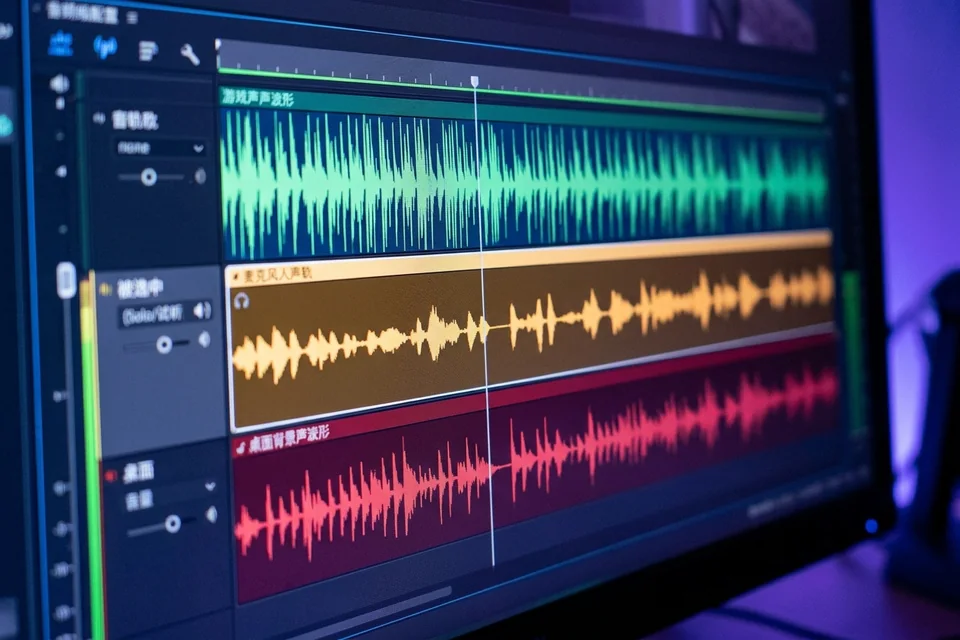
Record 10 seconds while speaking and playing game audio. Stop, then open the file in a player that shows track selection, or import it into an editor and inspect each track. If the source’s track is empty, return to Advanced Audio Properties and correct the assignment. If the track contains audio, the issue is in your player or export step, not OBS.
Rollback note
If you changed track assignments and the recording worsens, reopen Advanced Audio Properties and restore the previous checkboxes. Keep a note of the original layout before editing.
For a controlled diagnosis of your audio output capture obs mac setup,