Troubleshooting guide
Audio Output Capture OBS: Meter Moves but Recorded File Has No Source Audio
Category: Video Recording
You are recording a game and mic on separate tracks, and at the audio source is not captured step the meter moves but the recorded file has no source audio.
Check Track Assignment Before Anything Else
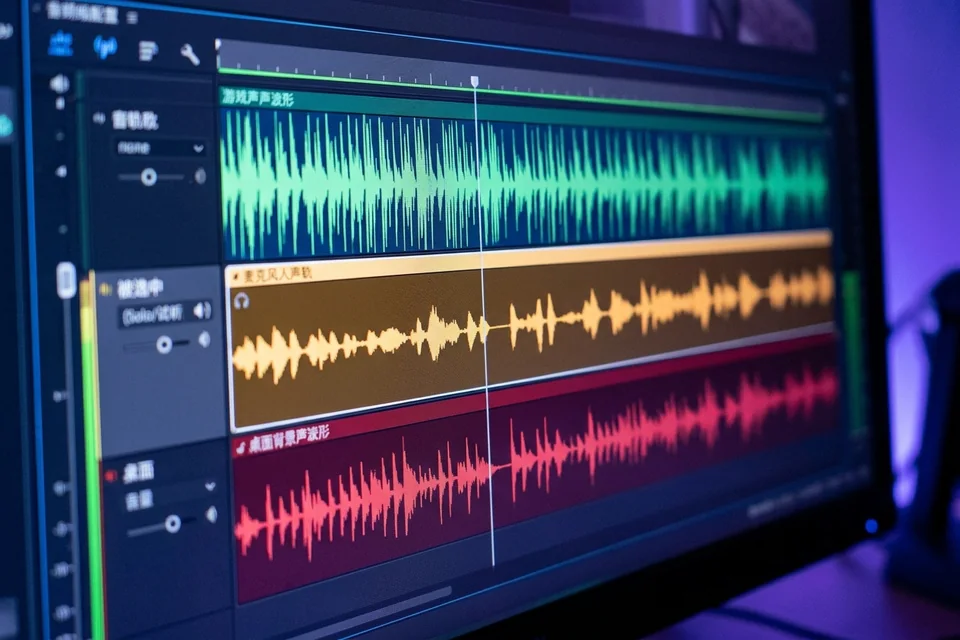
Open the mixer, click the gear next to the silent source, and select Advanced Audio Properties. Confirm the source’s track checkboxes match the tracks you expect in the file. If the meter moves but the file is silent, the source is often routed to a track your recording format does not save. Set the source to Track 1 and repeat the recording test. If audio appears, the original track was not included in the output container.
Confirm Monitoring and Output Routing
In Settings > Audio, verify the monitoring device and output device are not set to a disabled or virtual device that swallows the signal. Then check that the source is not muted in the mixer and that its volume is above zero. A moving meter with no recorded audio can also mean the source is monitored but not assigned to any recorded track.
Run a Short Verification Test
Record ten seconds with the game and mic active. Stop, open the file in a player that shows track selection, and inspect each track. If the expected source is missing, return to Advanced Audio Properties and re-check the track boxes. This also helps isolate an audio output capture obs routing issue from a file-format limitation.
Rollback and Recovery
Before changing more settings, export your current scene collection so you can restore it. If a change makes things worse, re-import that export. Keep one known-good recording as a baseline so you can compare track layouts after each edit.
If the track boxes and monitoring settings are correct but the file still lacks the source,
Ask for help with your OBS log and a sample recording.