Troubleshooting guide
Audio Input Capture OBS: Meter Moves but Recording Has No Source Audio
Category: Video Recording
You are recording gameplay and mic on separate tracks, and at the audio source is not captured step the meter moves but the recorded file has no source audio.
Confirm the source is actually assigned to a track
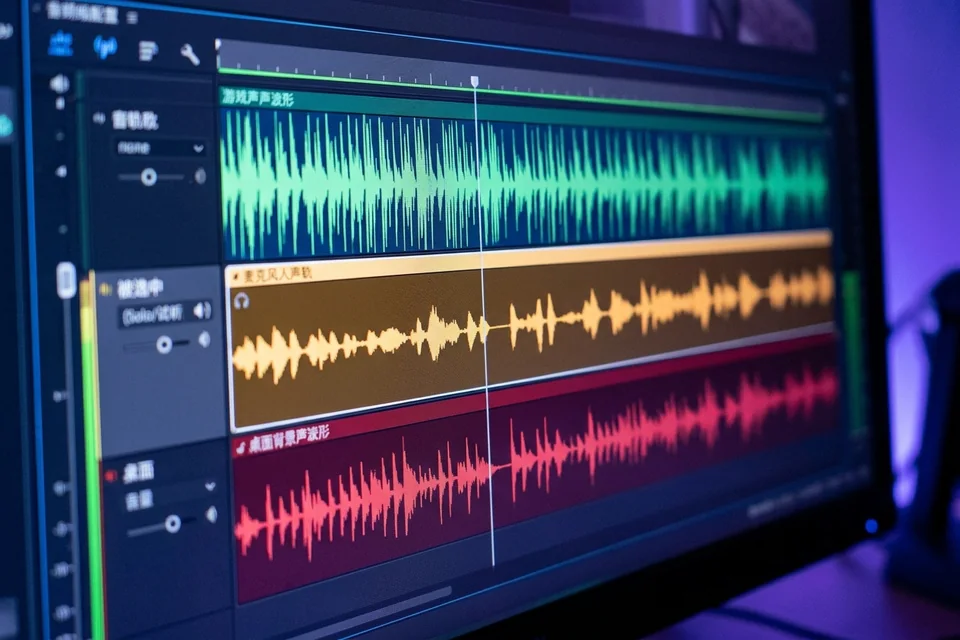
Open the Advanced Audio Properties window for your mic source. Under Tracks, confirm at least one track box is checked. If no track is checked, OBS meters the source but writes nothing. Check Track 2 for mic and Track 1 for game, or whichever layout you use. Click OK, then stop and restart the recording so the change takes effect.
Check the track is included in the output
Go to Settings, Output, Recording. In the Recording tab, confirm the audio track selection includes the track you assigned. If you record to a custom format, verify the container supports multiple audio tracks. A mismatch here is the most common reason an audio input capture obs source appears active but is absent from the file.
Rule out monitoring confusion
In Advanced Audio Properties, check Monitoring. If monitoring is off, you may be hearing the source through Windows while OBS receives nothing usable. Set monitoring to Monitor Off for recording, then test again.
Verification test
Record ten seconds while speaking. Stop. Open the file in a player that shows audio tracks, such as VLC under Audio, Audio Track. If Track 2 is silent, return to Advanced Audio Properties and recheck the box. If it plays, the fix is confirmed.
Rollback note
If a recent change caused this, revert the track assignment and output settings to their previous values before retesting, so you compare like with like.
If the meter still moves and the file stays silent after these checks,
Ask for help with your OBS log and a short sample recording.