Troubleshooting guide
Audio Capture OBS Mac: Fixing a Source That Shows a Meter but Records No Audio
Category: Video Recording
You are recording game and mic on separate tracks in OBS on Mac, and you are stuck at the audio source is not captured step because the meter moves but the recorded file has no source audio.
Confirm the source is actually routed to a recorded track
Open the Advanced Audio Properties window for the source. Under Tracks, verify that at least one track box is checked for that source and that the same track is enabled in Settings > Output > Recording. If the source is checked only on a track that is not enabled for recording, the meter will still move but the file will be silent. Result to expect: the source’s track checkbox matches an enabled recording track.
Check macOS microphone permission for OBS
Go to System Settings > Privacy & Security > Microphone and confirm OBS is allowed. If it is not listed or is toggled off, OBS can show activity on some sources while the captured signal is blocked. Toggle it on, then fully quit and reopen OBS. Result to expect: OBS appears enabled in the microphone list.
Verify the track in a short test recording
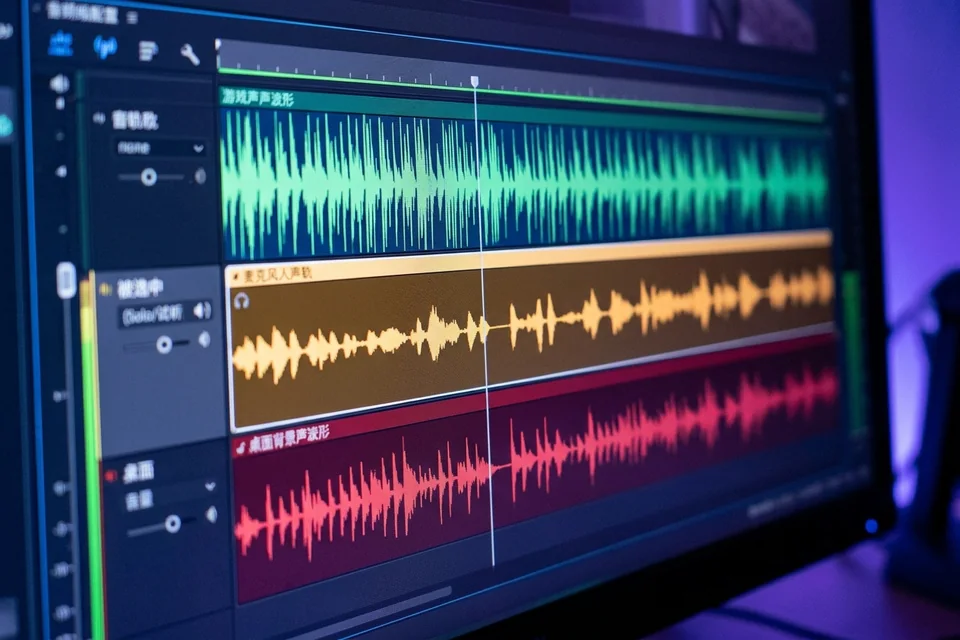
Record 10 seconds with the source active, stop, and open the file in QuickTime or a multitrack editor. Solo each track and confirm the expected source appears on its assigned track. If it does not, revisit the track mapping before changing anything else. This is the controlled diagnosis step for audio capture obs mac issues.
Rollback and recovery
If a recent change caused this, restore your previous OBS profile via Profile > Import or revert the last audio routing edit, then retest. Keep a known-good profile export before further changes.
If the track mapping and permissions both check out and the file is still silent,
Ask for help with your OBS version, macOS version, and a short test recording.