Troubleshooting guide
Audio Capture OBS: Why the Meter Moves but Your Recording Has No Source Audio
Category: Video Recording
You are recording a game and mic on separate tracks, and OBS shows moving meters, but the saved file has no source audio.
Confirm the track is actually assigned
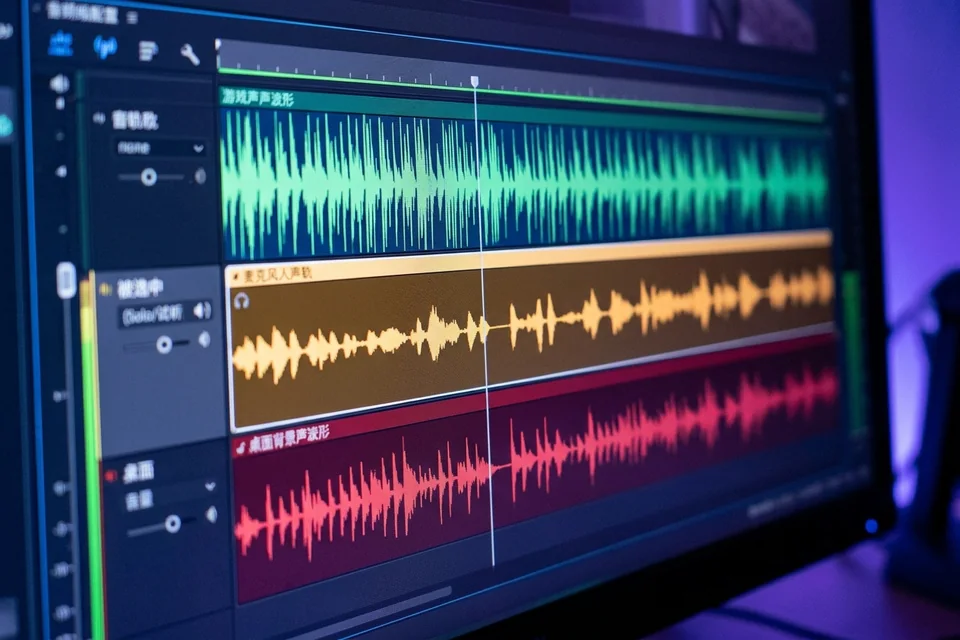
Open the source’s properties and check that the correct track is enabled. A moving meter only proves OBS receives audio; it does not prove the source is routed to a recorded track. In Advanced Audio Properties, confirm the source’s track column matches the track you expect in the file. If the source is on track 1 but your player only reads track 2, the file will look silent. This is the most common audio capture obs routing mistake.
Check the output track layout
Go to Settings, Output, Recording, and inspect the audio track count. If you record two tracks, the container must support them. Save as MKV or MOV for multi-track; MP4 can behave unpredictably if the recording is interrupted. Then reopen the file in a player that lets you select audio tracks, such as VLC under Audio, Audio Track. If track 2 is silent while track 1 has sound, the source is routed to the wrong track, not failing to capture.
Run a verification test
Record ten seconds with the game audio and mic active. Stop, open the file in VLC, and switch between audio tracks. Expected result: each track carries only its assigned source. If one track is empty, return to Advanced Audio Properties and correct the track assignment before recording again.
Rollback and recovery
If you changed track assignments and the new recording is worse, restore the previous track layout and re-record a short test. Keep the original file untouched until the new test passes.
If the track assignment is correct and the file is still silent,