Troubleshooting guide
Audio Capture Mac OBS: Meter Moves but Recorded File Has No Source Audio
Category: Video Recording
Troubleshooting
You are recording a game and mic on separate tracks in OBS on Mac, and the meter moves but the saved file has no source audio. Start by confirming the source is actually routed to a recorded track, not just monitored. Open OBS Settings > Output, set Output Mode to Advanced, and under Recording check the Track list. Then open Edit > Advanced Audio Properties and verify the source’s Track 1 or Track 2 box is checked. If the box is unchecked, the meter still moves because monitoring is separate from recording. Check the result: if no track box is checked, that is your cause. Next, confirm the recording format. In Settings > Output > Recording, choose MKV or MOV; MP4 can hide track issues in some players. Record ten seconds while speaking and playing game audio, then stop. In QuickTime Player, open the file and use Window > Show Audio Track to confirm both tracks exist. If only one track appears, recheck Advanced Audio Properties. If the file plays silence on a track that shows a meter, toggle the source off and on, then recheck the track box. As a rollback, restore your previous Output settings and re-enable the original track assignments before testing again. For a controlled diagnosis of audio capture mac obs behavior, repeat the ten-second test after each single change. If the meter still moves but the file stays silent,
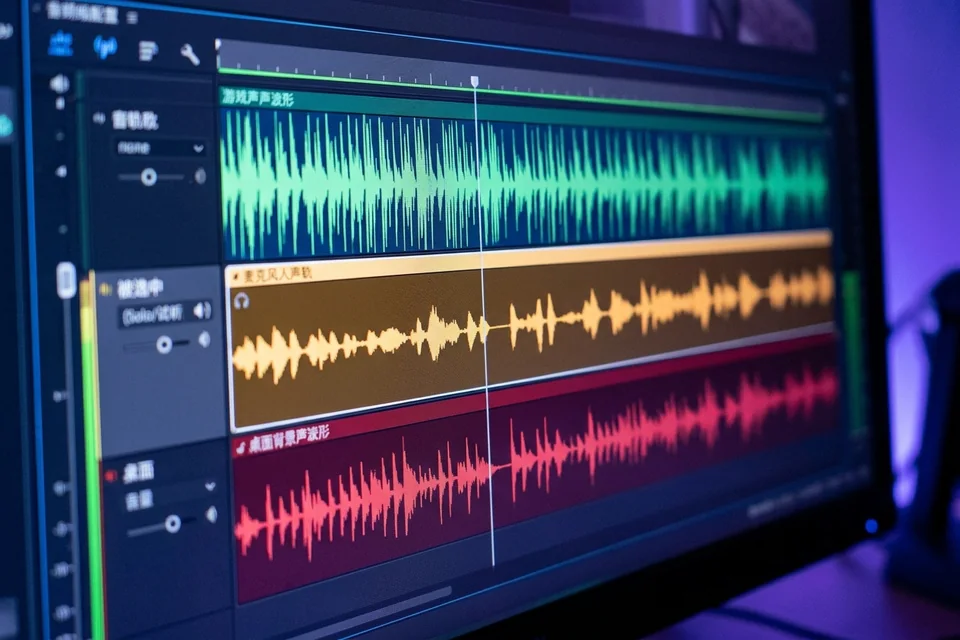
Ask for help with your OBS version, macOS version, and a screenshot of Advanced Audio Properties.
Repeat the same check after a restart and confirm the result twice.