Troubleshooting guide
OBS Audio Capture: When the Meter Moves but the Recording Has No Source Audio
Category: Video Recording
You are recording a game and mic on separate tracks in OBS, and the meter moves during the session, but the finished file has no source audio—this is a classic audio capture for obs routing problem, not a dead microphone. Before changing anything, do a controlled diagnosis.
Check Track Assignments in Advanced Audio Properties
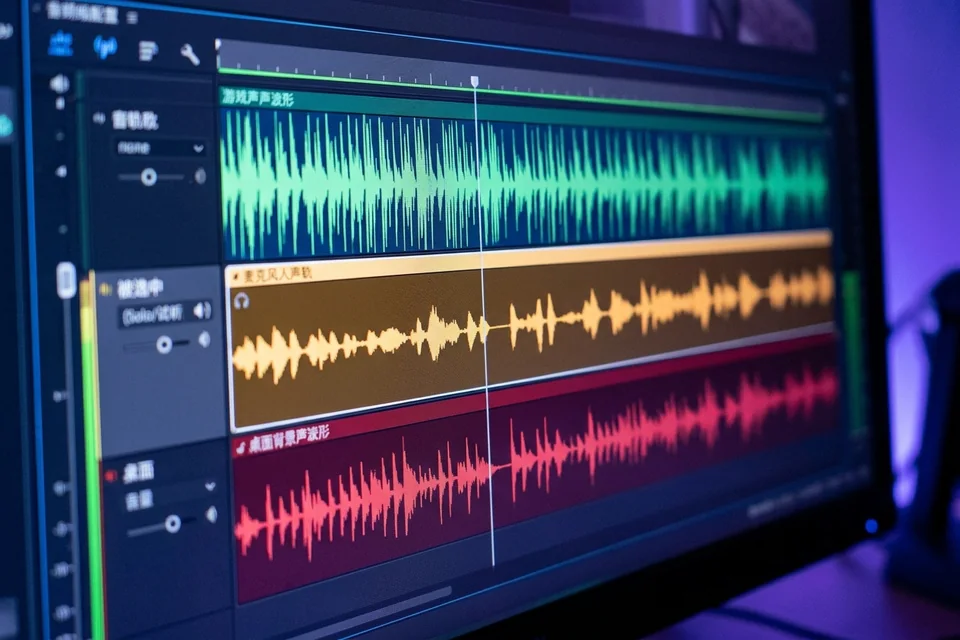
Open Edit > Advanced Audio Properties. For each source (game and mic), confirm the Track column has the correct track checked—for example, Track 1 for game and Track 2 for mic. If both sources are only on Track 1, your player may be muting or ignoring the other tracks. Result interpretation: if a source has no track checked, OBS records silence for it even though the meter moves.
Confirm the Recording Format Supports Multiple Tracks
Go to Settings > Output > Recording. If the format is FLAC or MKV, multi-track is supported. If it is MP4, switch to MKV or FLAC for the test. Result interpretation: MP4 can drop extra tracks depending on the encoder; if switching to MKV restores audio, the format was the cause.
Verify Monitoring and Output Routing
In Advanced Audio Properties, set Monitoring to Monitor Off for both sources unless you need to hear them. Then check Settings > Audio > Global Audio Devices—make sure the correct devices are selected and not set to Disabled. Result interpretation: a source set to Disabled will still show a meter in some themes but will not be captured.
Run a Verification Test
Record 15 seconds with the game and mic active. Stop, then open the file in VLC and use Audio > Audio Track to list tracks. If Track 2 exists and plays the mic, routing is fixed. If not, note which track is missing.
Rollback and Recovery
If a change makes things worse, revert the last setting only—do not reset all of OBS. Keep a backup of your scene collection before further edits. If the test still fails,
Ask for help with your OBS log and the track list from VLC.