Troubleshooting guide
Audio Application Capture OBS: Meter Moves but the Recording Has No Source Audio
Category: Video Recording
Troubleshooting
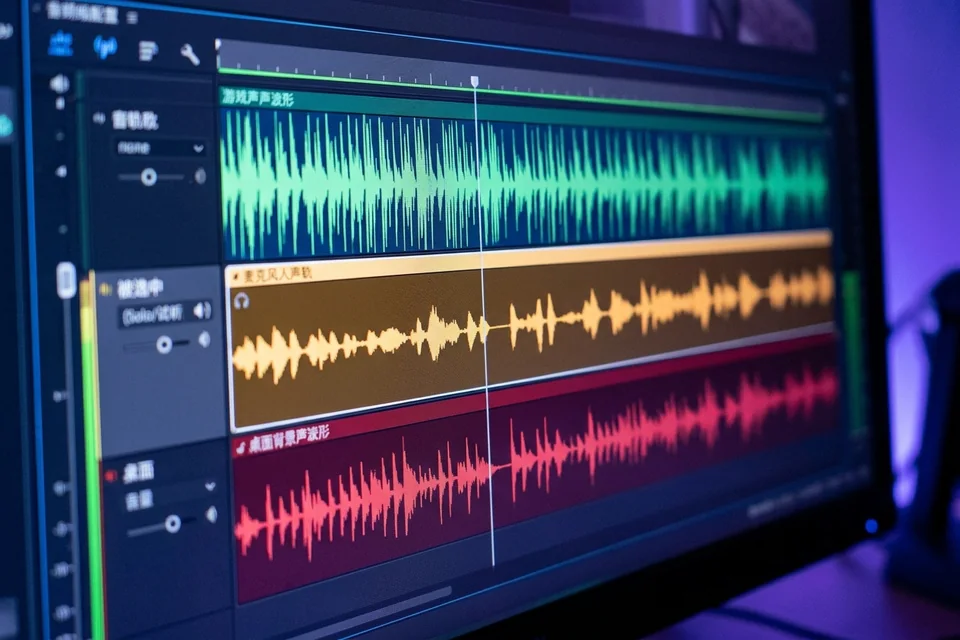
You are recording a game and mic on separate tracks, and OBS shows movement on the meter, but the saved file contains no source audio. This is a classic audio application capture obs issue where monitoring works but the recording path does not. Start by confirming the source is actually assigned to a track. Open the Advanced Audio Properties window and check that your game and mic sources have a checkmark under at least one track. If a source is only monitored and not assigned, the meter moves but nothing is written. Next, verify the track selection in Settings > Output. Under Recording, ensure the track list matches the tracks you assigned. A common mistake is recording only Track 1 while the source is on Track 2. Then check the audio encoder. If you are using a custom encoder, confirm it is not set to a format that drops channels. Also inspect the source properties: for game capture or window capture, ensure the audio device is set to the correct output, not disabled. For application capture, make sure the application is routed to the same device OBS is listening to. After these checks, run a verification test: record ten seconds with the meter visibly moving, stop, and play the file in a media player that shows track selection. If the file is silent, re-open Advanced Audio Properties and confirm the track assignment again. As a rollback, if you changed encoder settings, switch back to the default encoder and re-test before making further changes. If the issue persists,
Ask for help with your OBS logs and a short sample recording.