Troubleshooting guide
Application Audio Output Capture OBS: Meter Moves but Recording Has No Source Audio
Category: Video Recording
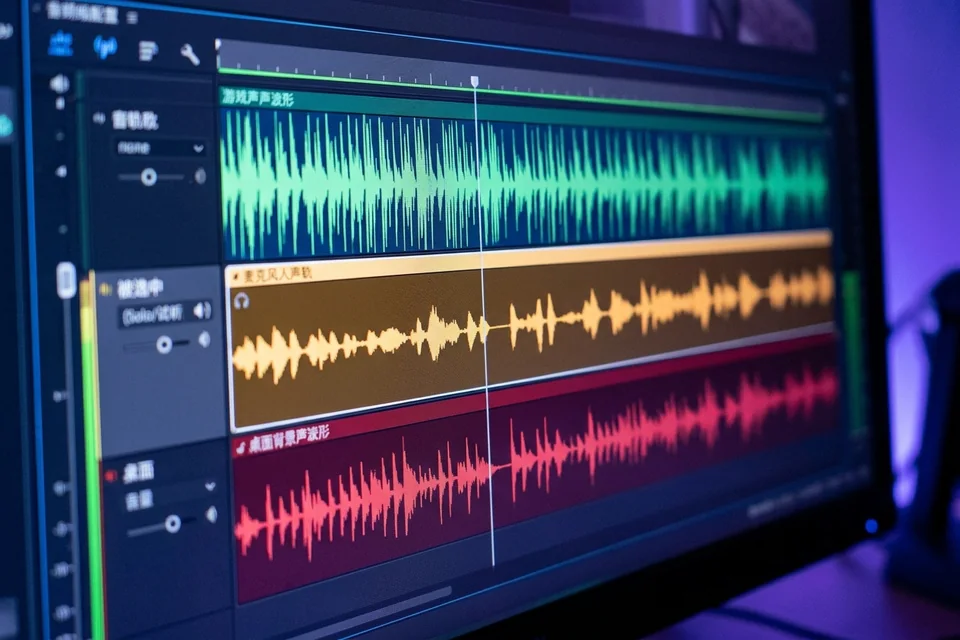
You are recording a game and mic on separate tracks in OBS Studio, and at the application audio output capture step the meter moves but the recorded file has no source audio. Let’s diagnose this in a controlled way instead of changing many settings at once.
Check the track assignment first
Open the Advanced Audio Properties window (the gear icon in the Audio Mixer). Find your application audio source and confirm which track numbers have checkmarks. If the source is only on Track 1 but your recording output expects Track 2, the meter will still move while the file stays silent. Result to interpret: a checkmark on the wrong track means the source is captured but written to a track you are not listening to.
Confirm the recording output tracks
In Settings > Output, under Recording, check the track selection. If only one track is enabled there, any source assigned to another track is dropped from the file. Enable the tracks you assigned and re-test.
Verify with a short test recording
Record 15 seconds with the game sound and mic active. Play the file in a player that shows track selection, or import it back into OBS. If the meter moves during recording but the imported file shows silence on the expected track, the issue is track routing, not the capture source. If the imported file now has audio, the fix is confirmed.
Rollback note
Before changing more settings, export your current profile (Profile > Export) so you can restore it if a track change makes things worse. If the test fails, revert to the exported profile and revisit the track checkmarks.
For a focused review of your application audio output capture obs setup,